
Your own modules & payload files
Guide contents
- Overview & responsible use
- Create your account
- Activating Pro & how to pay
- First launch: choose a mode
- Local mode
- Remote mode & the agent
- Teams & shared engagements
- The main menu
- Scanning — Nmap
- Scanning — Nuclei
- The workspace database
- Import & export
- Exploits
- Auxiliary
- Payloads & handlers
- Your own modules
- msfconsole
- Sessions & post-exploitation
- Jobs & background tasks
- Keeping Lupus off the test network
- Settings
- Troubleshooting
Metasploit ships thousands of modules, but sooner or later you write your own — or you want a payload built around a template the target's antivirus does not already know. Upload them once on the website and your phone installs them by itself.
Upload from your computer
Go to My arsenal in your account. Drop in .rb or .py files and they become Metasploit modules; anything else — an .exe to use as an msfvenom template, raw shellcode, a loader you compiled — is stored as a file you can pick on the device. Up to 20 MB per file, 50 MB per account.
Files that are not module source are encrypted in your browser before they are uploaded, so the storage provider only ever holds opaque bytes. The key belongs to your account, so this is not secrecy from us — it keeps your payloads away from third-party scanners.
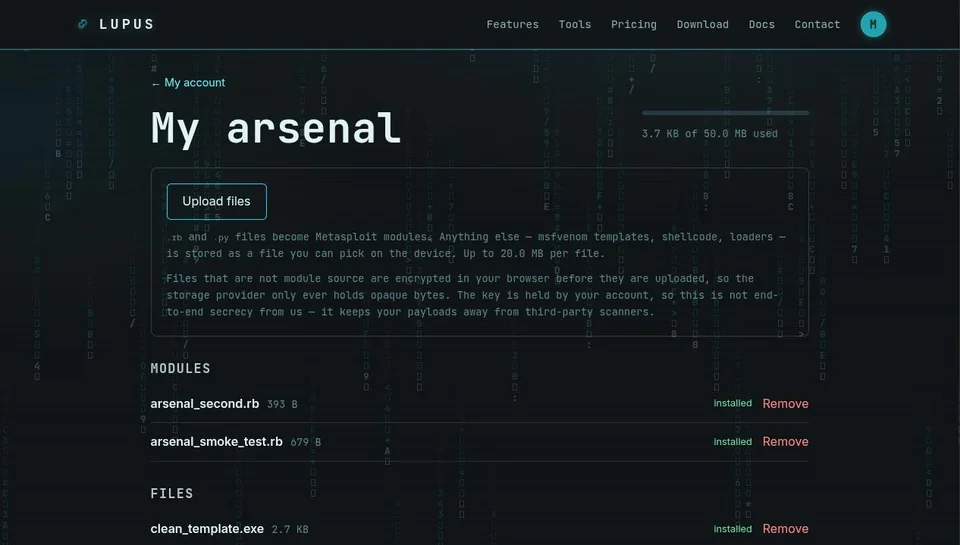
The phone syncs by itself
There is no screen to visit and nothing to press. Whenever the app is open, online and connected to an agent, it checks whether your arsenal changed and installs what is new. You get a notification only when it actually installed something — or when something failed.
Your modules then appear in the ordinary Exploits, Auxiliary and Payloads browsers, alongside the stock ones, with your account name in the path so they are easy to spot. Configure and run them exactly like any other module.
The sync installs on the remote agent — the machine your whole team points at, not your phone. That is usually what you want on an engagement, but it does mean your teammates can see and run what you uploaded.
Using your own msfvenom template
In Msfvenom, tap the folder button next to Template. It opens already showing the files you uploaded — no path to type — plus a shortcut to Metasploit's own bundled templates if you would rather start from one of those.
When a module does not show up
Check the My arsenal page. Every file carries the result your device reported: if Metasploit refused to load a module, the Ruby error is right there under it — usually a syntax error or a missing require. Fix the file, upload it again, and the next sync replaces it.
Changing one of Metasploit's own bundled modules in place does not last: the whole toolchain is replaced when the app updates its packages, and your edit goes with it. Copy it, change your copy, and upload that instead — anything in your arsenal is restored on every sync.