
Keeping Lupus off the network you're testing
Guide contents
- Overview & responsible use
- Create your account
- Activating Pro & how to pay
- First launch: choose a mode
- Local mode
- Remote mode & the agent
- Teams & shared engagements
- The main menu
- Scanning — Nmap
- Scanning — Nuclei
- The workspace database
- Import & export
- Exploits
- Auxiliary
- Payloads & handlers
- Your own modules
- msfconsole
- Sessions & post-exploitation
- Jobs & background tasks
- Keeping Lupus off the test network
- Settings
- Troubleshooting
During an engagement your phone is usually joined to the client's Wi-Fi, and that is a poor place for Lupus' own traffic to leave from — for two separate reasons. Whoever runs that network can see it, and it frequently has no real way out anyway: a captive portal, a filtered uplink, an isolated lab segment.
Settings → Global → Network sends Lupus' own traffic — the AI, and the account API the AI depends on — over mobile data, while the phone stays associated to the Wi-Fi. The engagement itself does not move: your scans keep running on the network you are testing.
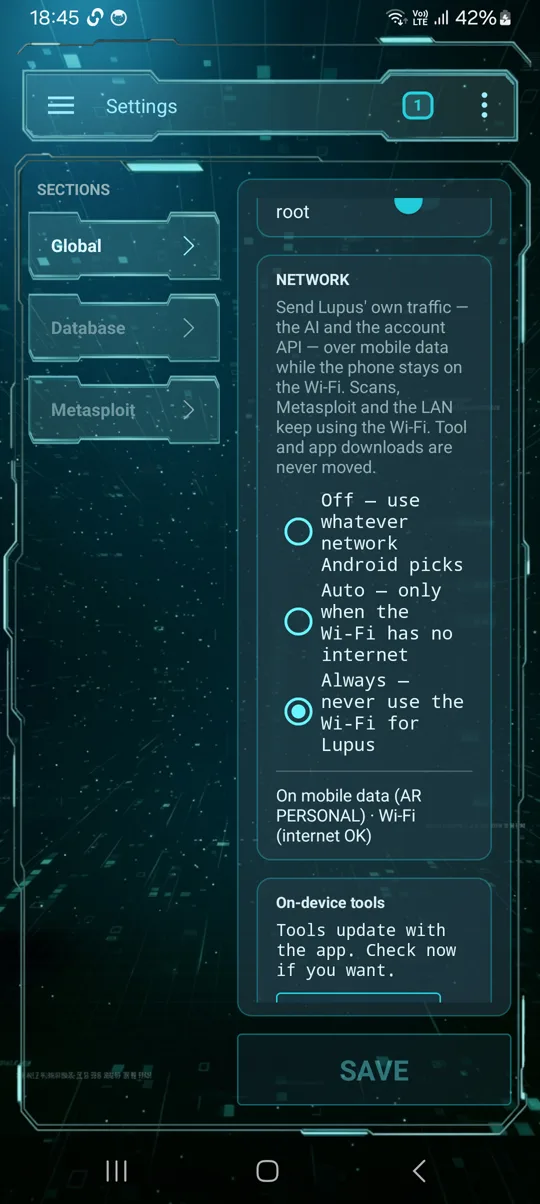
| Mode | What it does |
|---|---|
| Off | Everything follows whatever network Android picked. This is the default and how Lupus has always behaved. |
| Auto | Uses mobile data only while the Wi-Fi has no working internet. Good for a lab or a captive portal: you get the AI back without thinking about it, and nothing changes when the Wi-Fi is fine. |
| Always | Never uses the Wi-Fi for Lupus, even when it works. This is the one to pick when the point is that nothing Lupus-shaped should appear on the client's network. |
What moves and what doesn't
- Moves to mobile data: the AI agent's conversation with the model, and the account calls behind it — entitlement, the AI session, telemetry.
- Stays on the Wi-Fi: everything that is the engagement. Nmap, Nuclei, Metasploit, sessions, the agent connection, and anything aimed at a private address. Your targets are on that network; the traffic that reaches them has to stay there.
- Never moves: the big downloads — the on-device tool set, app updates and Nuclei templates. Those are hundreds of megabytes and stay on the default network so they cannot quietly eat a data plan.
Only the small stuff is moved, so a short AI session is on the order of a couple of hundred kilobytes. A long conversation costs more than a short one — the model is sent the transcript on every turn — but it is still text, not downloads.
On Always, if there is no mobile data connection Lupus fails rather than quietly falling back to the Wi-Fi — falling back would leak exactly what you turned the setting on to prevent. Check that mobile data is enabled and a SIM is present; the status line under the modes tells you what it is actually doing right now.
If Android decides the Wi-Fi has no internet it may stop routing through it altogether. Lupus keeps its own agent connection pinned to the Wi-Fi, but your scans run as separate processes and can lose the local network — so the page warns you when that happens.