
Remote mode & the agent
Guide contents
- Overview & responsible use
- Create your account
- Activating Pro & how to pay
- First launch: choose a mode
- Local mode
- Remote mode & the agent
- Teams & shared engagements
- The main menu
- Scanning — Nmap
- Scanning — Nuclei
- The workspace database
- Import & export
- Exploits
- Auxiliary
- Payloads & handlers
- Your own modules
- msfconsole
- Sessions & post-exploitation
- Jobs & background tasks
- Keeping Lupus off the test network
- Settings
- Troubleshooting
Remote mode points Lupus at an app-agent running on another machine — a VPS, a lab box or a server — so the heavy lifting happens there and the phone is just the console. Use it for more horsepower, long engagements, or to attack from a network the agent already sits on.
What the agent is
The agent (app-agent) is a single gRPC server that is Lupus's only point of contact with the box. Everything the app does flows through it: running tools (nmap, nuclei), proxying the Metasploit RPC, exposing the Metasploit database (hosts, services, vulns, credentials, loots, workspaces), driving consoles and sessions, generating payloads, and browsing/transferring files — it replaces the old SSH/SFTP/exec paths. The phone never talks to Metasploit directly; it talks to the agent.
Prerequisites
The host running the agent needs:
- A Linux machine you control.
- Metasploit Framework installed (it provides
msfrpcd). - PostgreSQL for the Metasploit database.
- The scanning tools you intend to use (
nmap,nuclei). - The
app-agentbinary — grab it from the download page (it's distributed separately from the app). - Network reach — the agent's port must be reachable from the phone.
This is exactly the stack Lupus bundles and starts for you in local mode; on a remote box you run the same pieces yourself.
Services that must be running
Bring them up in this order — each depends on the previous:
- PostgreSQL — the Metasploit database (a
msfrole/database on127.0.0.1:5432). - msfrpcd — the Metasploit RPC daemon, e.g.
msfrpcd -U lupus -P <password> -a 127.0.0.1 -p 55599. - app-agent — the gRPC server on
:50051, pointed at msfrpcd.
The agent can accept the connection but report msf_connected = false when msfrpcd isn't running — the app connects, but Metasploit-backed screens stay empty. Make sure msfrpcd (and Postgres) are up before the agent.
Quick start
Grab the agent from the download page (a static Linux binary). Start PostgreSQL and msfrpcd, then launch the agent in enrollment mode — it auto-generates its TLS certificates into --certs-dir:
chmod +x app-agent-linux-amd64

        # msfrpcd (example): msfrpcd -U app -P app -S -p 55599 -a 127.0.0.1
        ./app-agent-linux-amd64 \
          --listen 0.0.0.0:50051 \
          --certs-dir ~/.app-agent/certs --cert-sans "<your-public-ip>" \
          --msf-host 127.0.0.1 --msf-port 55599 --msf-user app --msf-pass app --msf-ssl=true \
          --enrollment-mode --allowed-ips "<your-phone-ip>/32"
The agent prints an 8-character enrollment code. Enter the host, port 50051 and that code in the app (below). Only port 50051 needs to be reachable from the phone — keep PostgreSQL and msfrpcd bound to 127.0.0.1.
Agent options
The agent is configured with flags (the --msf-* example above matches an msfrpcd on port 55599):
| Flag | What it does |
|---|---|
--listen 0.0.0.0:50051 | Address/port the gRPC server listens on (use 0.0.0.0 for remote). |
--certs-dir <dir> | Certificate directory — the agent auto-generates the CA/server/client certs here if they're missing. |
--cert-sans <list> | Extra SANs (your public IP/domain) baked into the server certificate. |
--msf-host 127.0.0.1 | Host where msfrpcd is reachable (default). |
--msf-port 55553 | msfrpcd port (default 55553). |
--msf-user / --msf-pass | msfrpcd credentials (default user msf); use --msf-pass-file to keep the secret off the command line. |
--msf-ssl=true | Use SSL to talk to msfrpcd. |
--allowed-ips <list> | IP/CIDR allowlist — connections from anything else are dropped at the TCP layer. |
--auth-token-file <path> | File holding the bearer auth token (for restarts after enrollment). |
--enrollment-mode | First run only: enables enrollment and prints the 8-character code. |
--enable-reflection | gRPC reflection — off by default; only enable for debugging. |
Enrolling & connecting
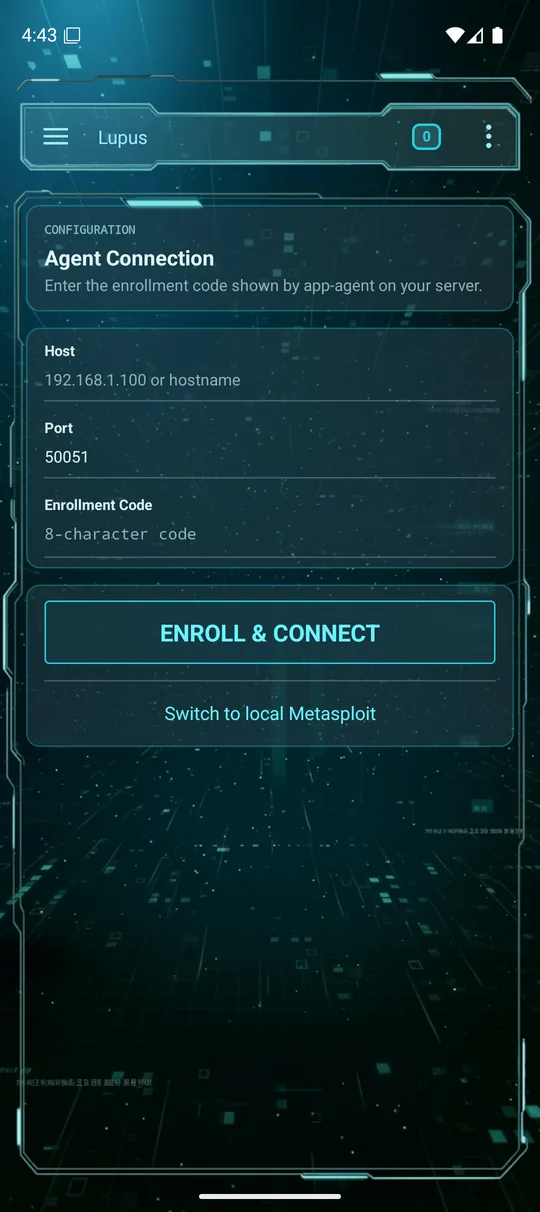
First run — start the agent with --enrollment-mode; it prints a one-time 8-character enrollment code on its console. On the app's connection screen, fill in:
- Host — the agent's IP or hostname.
- Port — the agent's gRPC port (default
50051). - Enrollment code — the 8-character code.
Tap Enroll & Connect. Lupus performs a trust-on-first-use enrollment: the agent hands back a CA certificate, a client certificate/key and an auth token; the app stores them securely and verifies the link with a ping. On later restarts, run the agent in its normal mode (no enrollment flag) — the app reuses the saved certificates and token, so you don't enroll again.
Security
After enrollment, every call is mutually authenticated with mTLS (CA + client certificate) plus a bearer token, established trust-on-first-use during enrollment. The Metasploit RPC password is never passed on the command line — the agent reads it from a file (--msf-pass-file), so it never shows up in the process list.
Checking status & troubleshooting
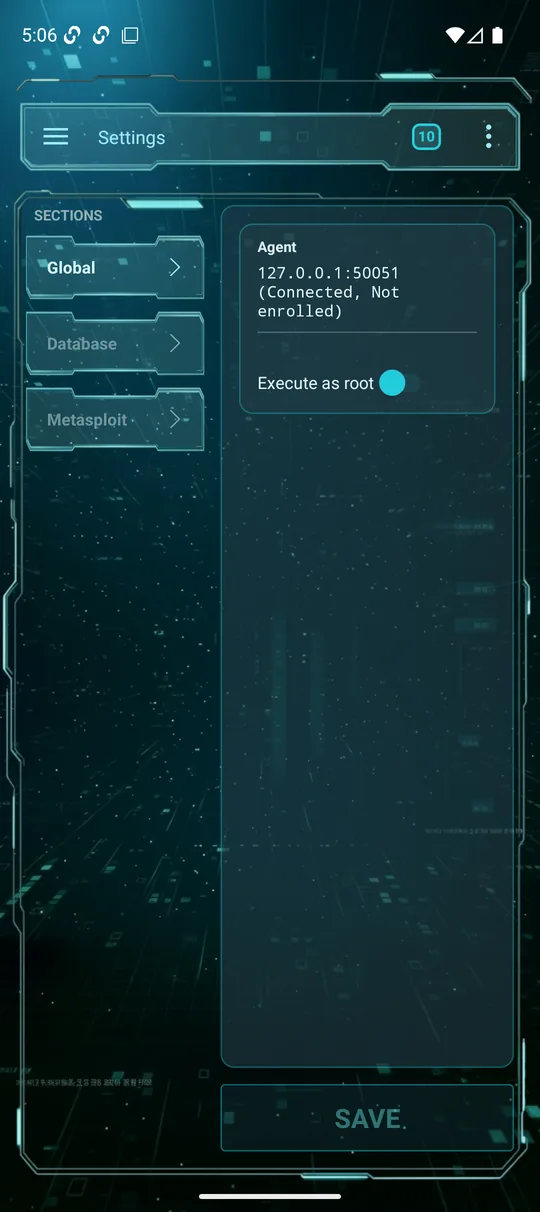
Settings → Global shows the agent state — Connected / Disconnected and Enrolled / Not enrolled.
- Enrollment fails — the agent isn't running in
--enrollment-mode, the code is wrong/expired, or the host/port isn't reachable from the phone. - Connected but no Metasploit data —
msf_connected = false; msfrpcd (or Postgres) isn't up. Restart the service stack in order. - After a reconnect — keep the saved connection; don't re-enroll unless you've reset the agent's certificates.